What is image to video AI?
Image to video is a mode of AI video generation where the first frame is an existing image. The model predicts how the scene would move and generates the frames that follow. Because it starts from your picture, the result looks much closer to your original than a clip generated from text alone.
In AI Agent Help you upload a photo (or make one in the Studio), describe the motion, and pick Grok Imagine, Kling or Google Gemini Omni to animate it.
Why animate an image instead of starting from text?
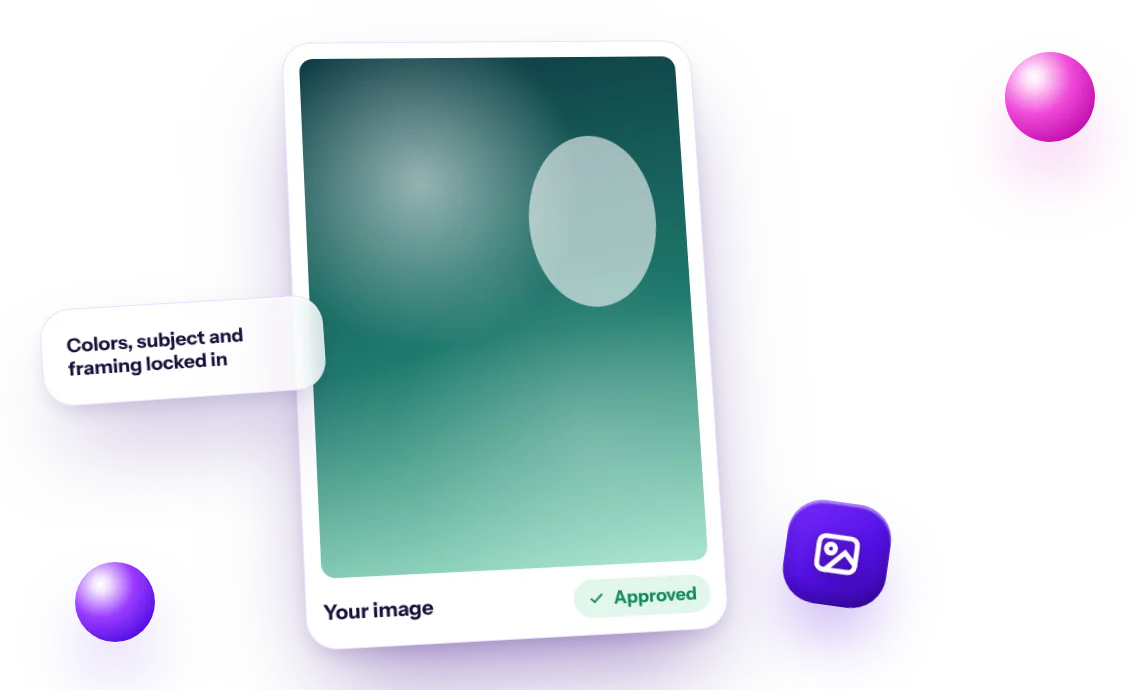
Starting from an image keeps your look consistent. The colors, subject and framing you approved stay the same, and the AI only adds movement. That matters when your feed has a recognizable style.
It also lets you test an idea cheaply. Make the image first, see if you like the composition, and only then spend video credits on animating it.
- Product moments: a candle flame flickering, a drink with condensation sliding down
- Food: steam rising from a bowl, sauce being poured
- Interiors and real estate: light moving across a room, a slow camera glide
- Quote and tip backgrounds: gently moving clouds, water or leaves
- Travel: waves, drifting boats, moving crowds in the distance
How to write a motion prompt
Your image already shows the scene, so the motion prompt only needs to describe what changes. Name the moving element and the camera behavior, and keep it to one idea.
Example motion prompts
Illustrations for common image types:
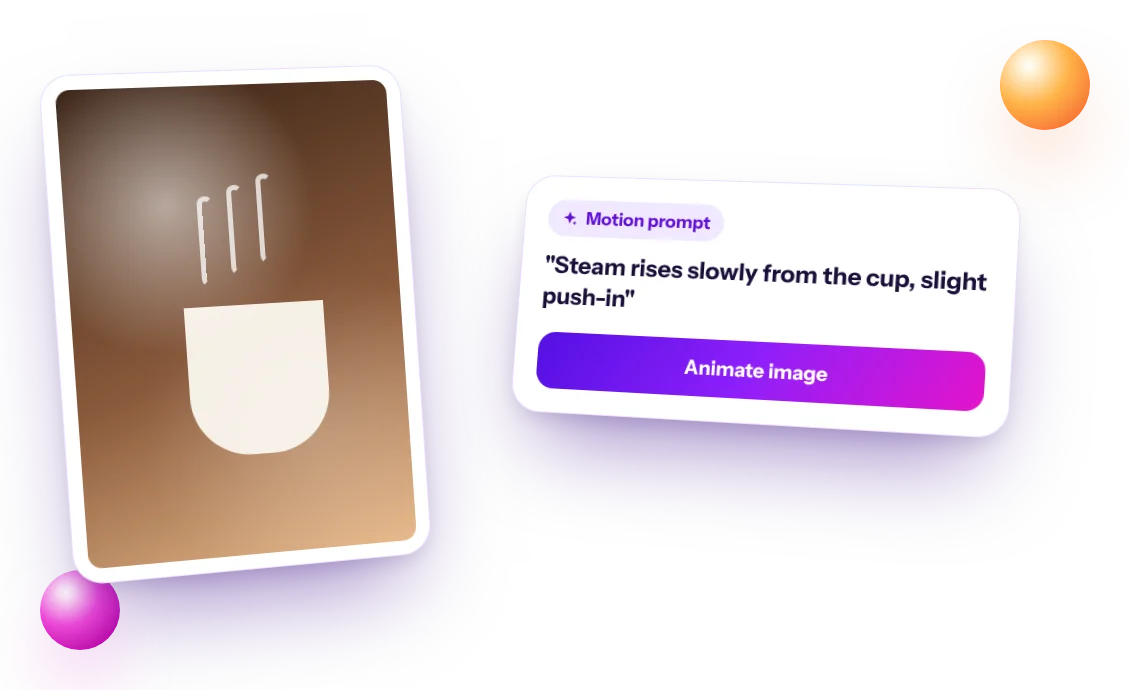
- Coffee image: "Steam rises slowly from the cup, slight slow push-in."
- Beach image: "Waves roll gently onto the sand, camera stays still."
- Portrait-style lifestyle image: "Hair moves softly in the breeze, subtle handheld feel."
- Living room image: "Sunlight shifts across the floor, slow pan right."
- Candle image: "The flame flickers, warm light pulses on the wall, static camera."
Example: turning one feed post into a Reel
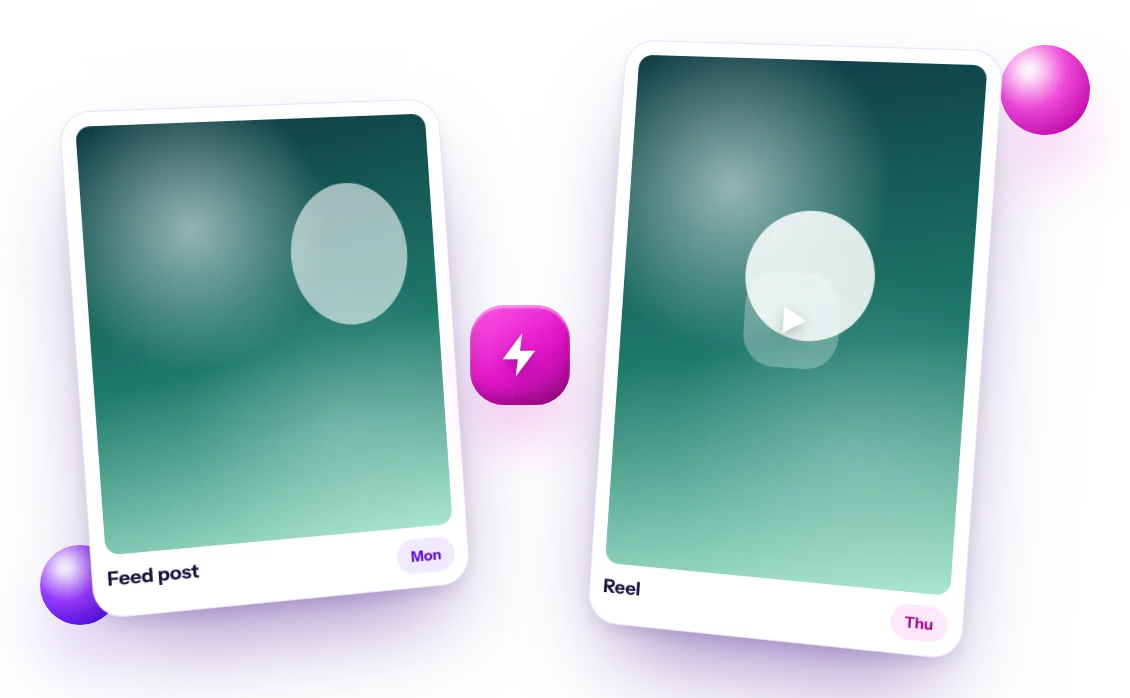
Here's an illustration for a fictional plant shop. The shop first creates a 4:5 feed image with the prompt: "A monstera plant in a terracotta pot next to a sunny window, soft morning light, warm natural photo style." The image becomes a regular feed post with a caption about watering in summer.
Later that week, the shop switches to Reel and animates the same scene with the motion prompt: "Leaves sway gently in a light breeze, sunlight flickers through the window, slow push-in." On-screen text added in Instagram reads: "Your monstera wants less water than you think." The caption expands on the tip and asks followers to share a photo of their plant.
The result is two pieces of content from one idea, with a matching look. That makes the feed feel consistent and saves you from planning a second visual from scratch.
Image to video vs text to video
Both create vertical clips of 8 to 10 seconds with the same three models and the same credits. The difference is control. Text to video is faster when you just want a clip. Image to video adds a checkpoint: you approve the still first, so you know what the video will look like before you spend video credits.
Mistakes to avoid when animating images
- Asking for big changes. Image to video is for motion, not for changing the scene. Make a new image if you want a different setting.
- Too much movement. Fast, dramatic motion can look unnatural. Subtle movement often looks better.
- Images with text in them. Words may warp when animated. Add text afterward in the Instagram editor.
- Busy images. A clear subject with some empty space animates more cleanly than a crowded scene.
- Skipping audio. Add music or a voiceover in the app where you post.
Can I upload my own photo to animate?
Yes. Open Image to Video in your dashboard and upload a JPG or PNG up to 8 MB: a product photo, a portrait or a place. Large photos are resized automatically.
You can also animate an image you made in the AI Agent Help Studio, so a feed post and its Reel share the same look.
How AI Agent Help turns an image into a scheduled Reel
Once the clip is ready, the agent writes a caption with a hook, a call to action and hashtags in your saved brand voice, in one of nine languages. You review everything, approve it and pick a time. The Reel is published to your connected Instagram Business or Creator account through Instagram's official API, and you can cancel before it goes live.
For TikTok, YouTube Shorts or Facebook, download the video and upload it yourself, since automatic publishing is Instagram only.
- Image: 5 credits
- Video: 60 credits (Grok Imagine), 70 (Kling) or 100 (Google Gemini Omni), all with sound
- Plans: Starter $19/month, Professional $39/month, Business $79/month
- Annual billing saves 20%